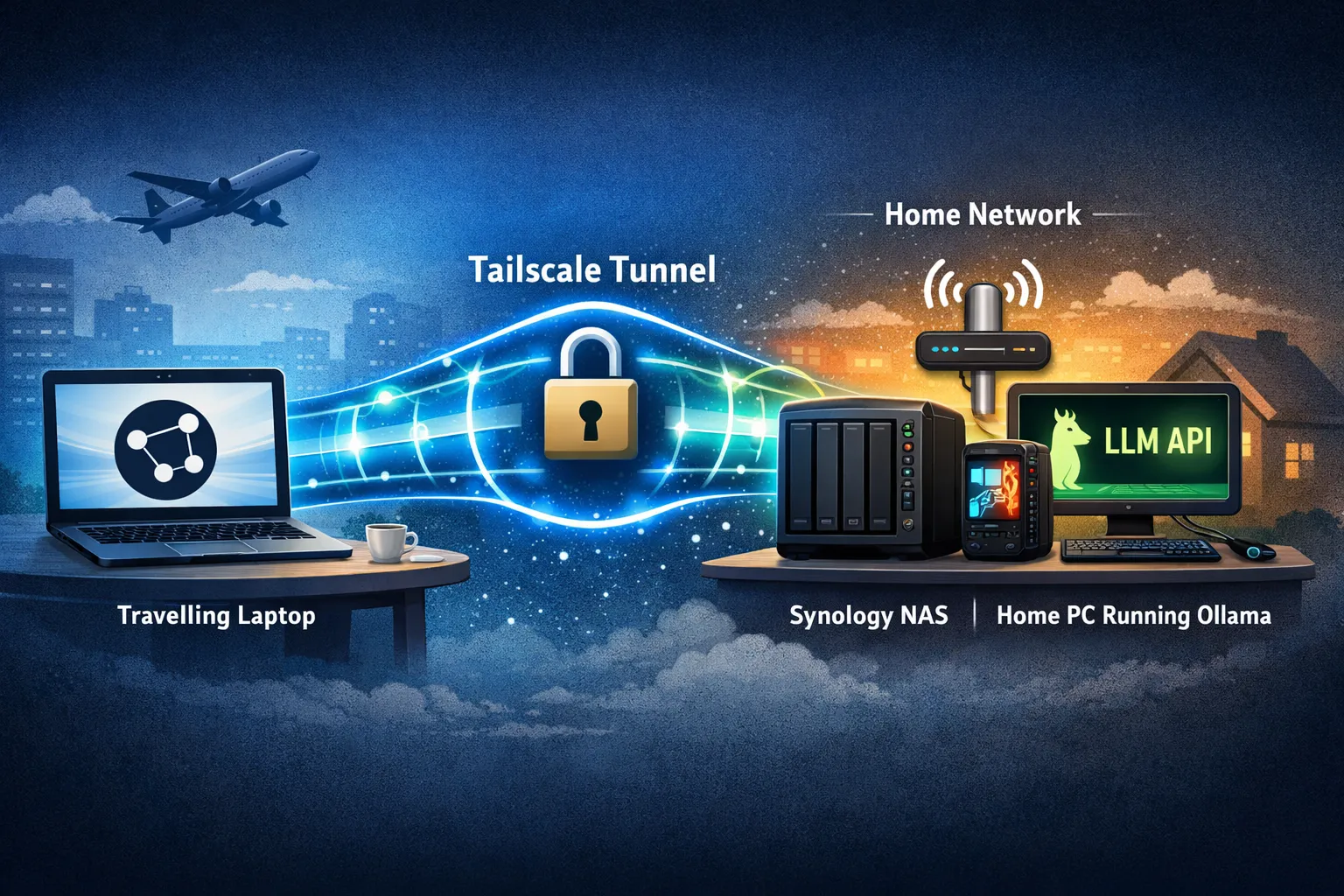
Quick Answer
You can access Ollama on a home PC from a laptop without opening router ports. Install Tailscale on both devices, sign in to the same tailnet, then bind Ollama to the PC’s Tailscale IP address with OLLAMA_HOST.
For Ollama on Windows, direct binding is preferable to plain Tailscale Serve. Serve forwards a .ts.net Host header that Ollama rejects with a 403 response when Ollama is listening on localhost. A Host-header-rewriting proxy can make Serve work, but that is a more advanced, separate setup. LM Studio did not exhibit this incompatibility in testing: its local API worked directly through Serve.
Neither method needs a Synology NAS, an exit node, or port forwarding. The simplest topology is:
Laptop -> Tailscale tailnet -> Home PC -> Ollama
The full diagram below shows both paths: LLM requests travel directly to the PC, while general internet traffic can optionally use a Synology NAS as an exit node.
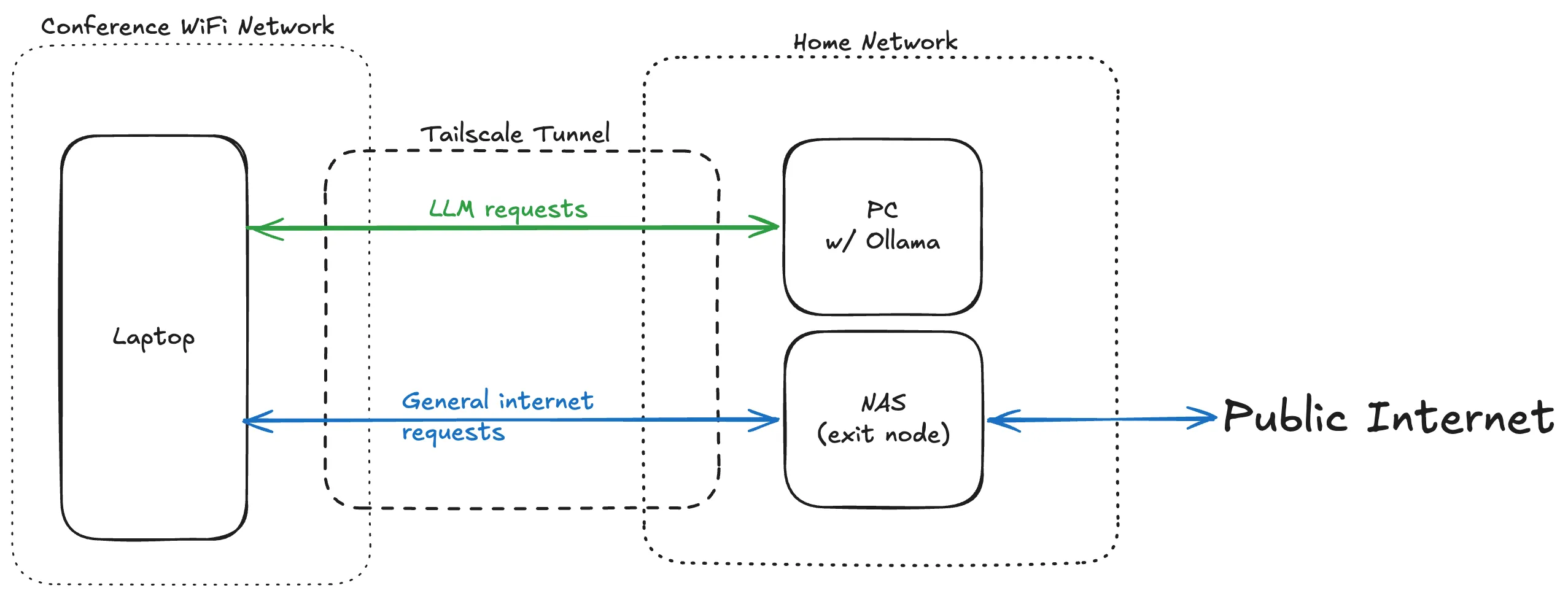
Tailscale encrypts the connection between authorized devices. It does not make Ollama’s API safe to expose to the public internet.
Prerequisites
- A home PC running Ollama.
- A laptop or other client device.
- Tailscale installed and signed in on both devices.
- At least one model installed on the home PC.
Verify the PC can run Ollama before adding remote access:
ollama pull llama3.2
ollama run llama3.2 "Reply with a short test message."
On each device, confirm that it has joined your tailnet:
tailscale status
Recommended Windows Method: Bind Ollama to the Tailscale IP
Make Ollama listen directly on the PC’s Tailscale IP address. This avoids a reverse proxy, but it means Ollama accepts connections on that network interface.
First, fully quit the Ollama desktop application so it does not compete with the server you are about to start. Then find the PC’s Tailscale IPv4 address:
tailscale ip -4
For a temporary server started from the current PowerShell session, set OLLAMA_HOST and start Ollama:
$env:OLLAMA_HOST = "100.x.x.x:11434"
ollama serve
Keep that terminal open. From a MacBook or Linux laptop, test it with:
curl http://100.x.x.x:11434/api/tags
On Windows, use curl.exe instead:
curl.exe http://100.x.x.x:11434/api/tags
Although this URL uses HTTP, traffic between tailnet devices is encrypted by Tailscale. Do not expose this Ollama port to the public internet.
To make the binding persist for the normal Windows Ollama application, set a user environment variable instead:
setx OLLAMA_HOST 100.x.x.x
Open a new terminal or restart Ollama after setting the persistent value. Binding to the Tailscale address is narrower than using 0.0.0.0, which can expose Ollama to other devices on the local network. If the request fails, check that Windows Firewall permits inbound TCP traffic on port 11434 from the Tailscale network.
Why Tailscale Serve Returns 403 with Ollama
Tailscale Serve can securely proxy a localhost service to your tailnet over HTTPS. Refer to Tailscale’s Serve documentation for version-specific behavior:
tailscale serve --bg http://127.0.0.1:11434
The first time you use Serve, Tailscale may ask you to enable HTTPS certificates in the Tailscale admin console. Keep Funnel disabled: Serve remains private to your tailnet, while Funnel makes the endpoint public. When Serve provisions a certificate, its fully qualified .ts.net device name is permanently recorded in public Certificate Transparency logs.
However, plain Serve does not work as a direct Ollama proxy in this setup. Tailscale forwards the service’s .ts.net hostname, while Ollama expects a local Host header and responds with 403 Forbidden.
You can confirm the cause with this diagnostic command:
curl.exe -H "Host: localhost:11434" https://your-pc.your-tailnet.ts.net/api/tags
If that command succeeds but the same URL without the custom header returns 403, Tailscale Serve and Ollama are both running correctly; the Host header is the incompatibility. In testing, adding a custom Host header in Open WebUI did not resolve the 403, so it is not a workable workaround.
To use Serve with Ollama, place a local reverse proxy such as Caddy or Nginx between Serve and Ollama, and configure that proxy to rewrite the upstream header to Host: localhost:11434. This keeps Ollama on localhost while letting Serve provide the tailnet HTTPS endpoint. Ollama’s proxy documentation uses the same Host-header rewrite.
To remove the Serve configuration from the PC, run:
tailscale serve reset
Prefer LM Studio? Tailscale Serve Works Directly
LM Studio’s local server worked directly through Tailscale Serve in the tested setup. With LM Studio’s server running on its default port, configure Serve on the PC:
tailscale serve --bg http://127.0.0.1:1234
Then, from a MacBook or another device in the same tailnet, test LM Studio’s OpenAI-compatible API:
curl https://your-pc.your-tailnet.ts.net/v1/models
Unlike Ollama in the setup above, LM Studio’s /v1/models endpoint responded successfully through Serve and did not return the Host-header 403. This makes Serve a convenient way to keep LM Studio listening only on localhost while providing a private HTTPS endpoint to tailnet devices.
I generally prefer LM Studio for interactive local-model testing because its desktop interface exposes model-loading controls, including context-window size, before starting the server. Ollama remains useful for command-line workflows and applications built around its native API.
| Use case | Better fit |
|---|---|
| Scriptable CLI workflows and Ollama-native integrations | Ollama |
| Browsing models and adjusting runtime settings in a desktop UI | LM Studio |
| Direct Tailscale Serve proxy in this tested setup | LM Studio |
Connect Open WebUI
Open WebUI gives the laptop a browser interface for the remote Ollama server. I run it locally on the laptop with Podman:
podman run -d \
  --name open-webui \
  -p 3000:8080 \
  -v open-webui:/app/backend/data \
  ghcr.io/open-webui/open-webui:main
Open http://localhost:3000 and create the first account. Open WebUI makes that first account the administrator.
In Settings > Admin Settings > Connections, configure the Ollama connection with the direct Tailscale address:
http://100.x.x.x:11434
Pull models on the PC, not from the laptop:
ollama pull llama3.2
Refresh Open WebUI after the model is installed, then select it from the model list.
Troubleshooting
| Problem | Likely cause | What to check |
|---|---|---|
| Connection refused | Ollama is still listening only on localhost | Restart Ollama after setting OLLAMA_HOST and confirm it is listening on the Tailscale IP. |
| Tailscale IP does not respond | Devices are disconnected or access rules block the path | Run tailscale status and tailscale ping <device-name>. |
| Serve URL returns 403 | Ollama rejects Serve’s forwarded .ts.net Host header | Use direct OLLAMA_HOST binding, or add a tested local proxy that rewrites the Host header. In testing, Open WebUI custom headers did not resolve this. |
| Direct IP fails on Windows | Windows Firewall blocks port 11434 | Allow inbound TCP 11434 from the Tailscale network. |
| Open WebUI cannot connect | Incorrect URL or container networking issue | Test /api/tags with curl from the laptop first. |
| The model list is empty | No model has been pulled on the Ollama PC | Run ollama pull <model-name> on the PC. |
| Remote replies feel delayed | Network latency or a relay path adds round-trip time | Run tailscale ping <device-name> and compare direct versus relay latency. |
Security and Privacy
Keep Ollama inside your tailnet. Do not expose its unauthenticated API directly to the public internet.
Tailscale Serve is private to your tailnet and respects Tailscale access-control rules, but plain Serve requires a Host-header-rewriting proxy for Ollama in this setup. Tailscale Funnel is different: it makes a service reachable from the public internet. I do not recommend Funnel for an Ollama API unless you add and maintain a separate authentication and security layer.
Open WebUI login controls access to its interface; Tailscale controls which devices and users can reach the service. Use both appropriately if other people can access your tailnet.
Local Ollama models process prompts on the PC that runs them. Check the settings for any cloud-hosted models or web-search features you enable, because those can have different data-handling behavior. To disable Ollama cloud features, set OLLAMA_NO_CLOUD=1 and restart Ollama.
Does This Work with Claude Desktop?
Tailscale only provides private network connectivity. It does not make Claude Desktop use Ollama as its model provider. Claude Desktop can still coexist with this setup, but connecting a local Ollama server to another application may require that application’s own integration, MCP server, or compatible API configuration.
Optional: Synology Exit Node
I also run Tailscale on a Synology NAS. That is useful when I want general internet traffic from a laptop on public Wi-Fi to exit through my home connection. It is separate from the basic laptop-to-Ollama path above.
To use a Synology as an exit node, install Tailscale from DSM Package Center, join the tailnet, and follow Tailscale’s Synology setup documentation. On DSM 7, enabling TUN support may be necessary for some outbound Tailscale use cases. Keep Tailscale updated because the Synology Package Center release can lag behind current client versions.
What This Setup Is Good For
This setup is useful when you want to use a model already running at home from another trusted device. The model stays on the home PC, while Tailscale provides encrypted transport between your devices.
Remote inference still has the same model speed and hardware limits as local inference. The additional network round-trip can make the experience feel slower, especially over a relay path or with long prompts. Estimate whether the PC has enough VRAM and bandwidth for the model and context length you want to use.